4/25/2026
Topic:
Auto Trim and Auto Lock error
izšuvums.lv
|
Auto Trim and Auto Lock modes are not working at all.
I am attaching screenshots where the automatic modes are enabled and the settings are specified. But in reality they are not applied at all.

 |
4/27/2026
Topic:
Process: Text to Segments just splits the letters
izšuvums.lv
|
After you split the text into segments, all letters with dots and diacritical marks become combined objects. You need to break them apart either by clicking the button on the toolbar or by using the Ctrl+K keyboard shortcut.
After that, in Sequence View, you will see two separate objects, to which you can apply trimming and set a lock stitch.
 
MrLogoSD wrote:
DG12 used to give me the actual segments, and not just the individual letters as whole pieces, I don't know where that changed between DG12 then and DG16 now. My goal was to delete individual stitches between the letter "i" and it's dot, that are hardcoded into the font. Every time I delete them, they just regenerate. My clients can see those stitches and they consider it a low quality embroidery. Because of that, for enough of my customers, this eliminates many fonts as options.
edited by MrLogoSD on 4/26/2026 |
4/27/2026
Topic:
Auto Trim and Auto Lock error
izšuvums.lv
|
Clarification!
Smart Join Mode, Auto Trim Mode, and Auto Lock Mode do work on their own with Standard Digitizing tools.
However, they do not work if a segment has been converted into one of the stitch fill types such as Satin Path, Complex Fill, etc.
I assume that this automatic mode was simply not designed to work when segments are converted.
But in reality, this is very illogical.
When I receive a vector file from a client, I don’t digitize it completely from scratch.
I take the vector artwork and convert its elements into the stitch types I need.
Why can’t this automatic mode work in this case if the elements are set in the correct sequence?
Why does it only work when digitizing from a raster image, but becomes useless with vector-based work?
In my opinion, this is very strange.
.
edited by izšuvums.lv on 4/27/2026 |
5/9/2026
Topic:
Tool options: Bezier etc. and Tool Icon collapsing
izšuvums.lv
|
The first part of the question is not entirely clear to me. I also started with version 12, but it was so long ago that I do not remember anything. Perhaps you could provide more details on what was meant.
If you mean drawing modes, they have not gone anywhere. You can download the Quick Reference Card from the official website where all program shortcuts are listed. The Drawing Modes section will show all available drawing types. Personally, I use quickdraw almost 100% of the time.
https://cloud.pulsemicro.com/Download
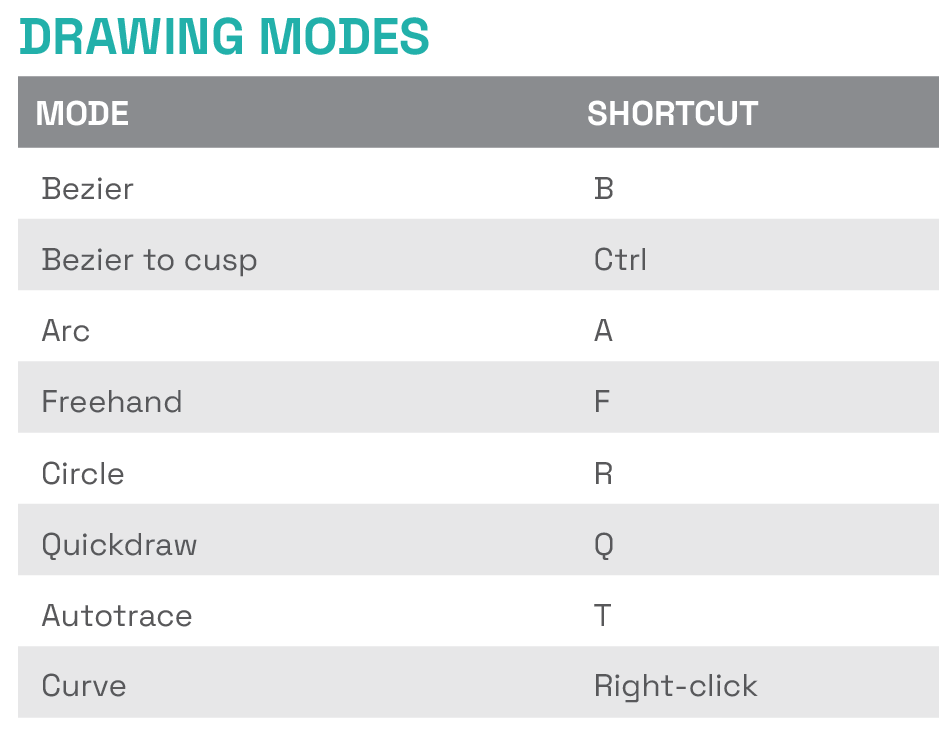
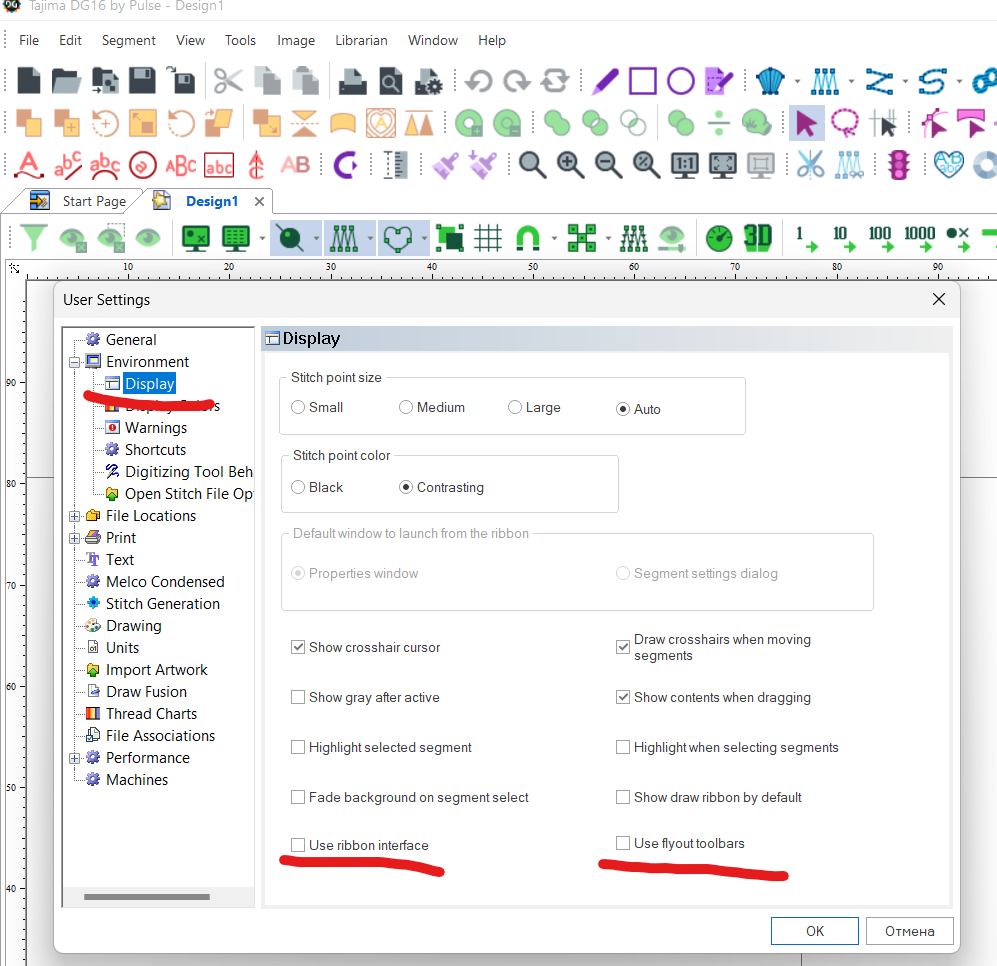
The second part of the question. I remember that just like you, I faced the unfamiliarity of the new interface and wanted to change it back. Now, I have gotten used to the ribbon and use only that, and the old view has become unfamiliar and even inconvenient. But at that time, it did not seem so to me. To return to the old interface display, you need to uncheck these checkboxes.
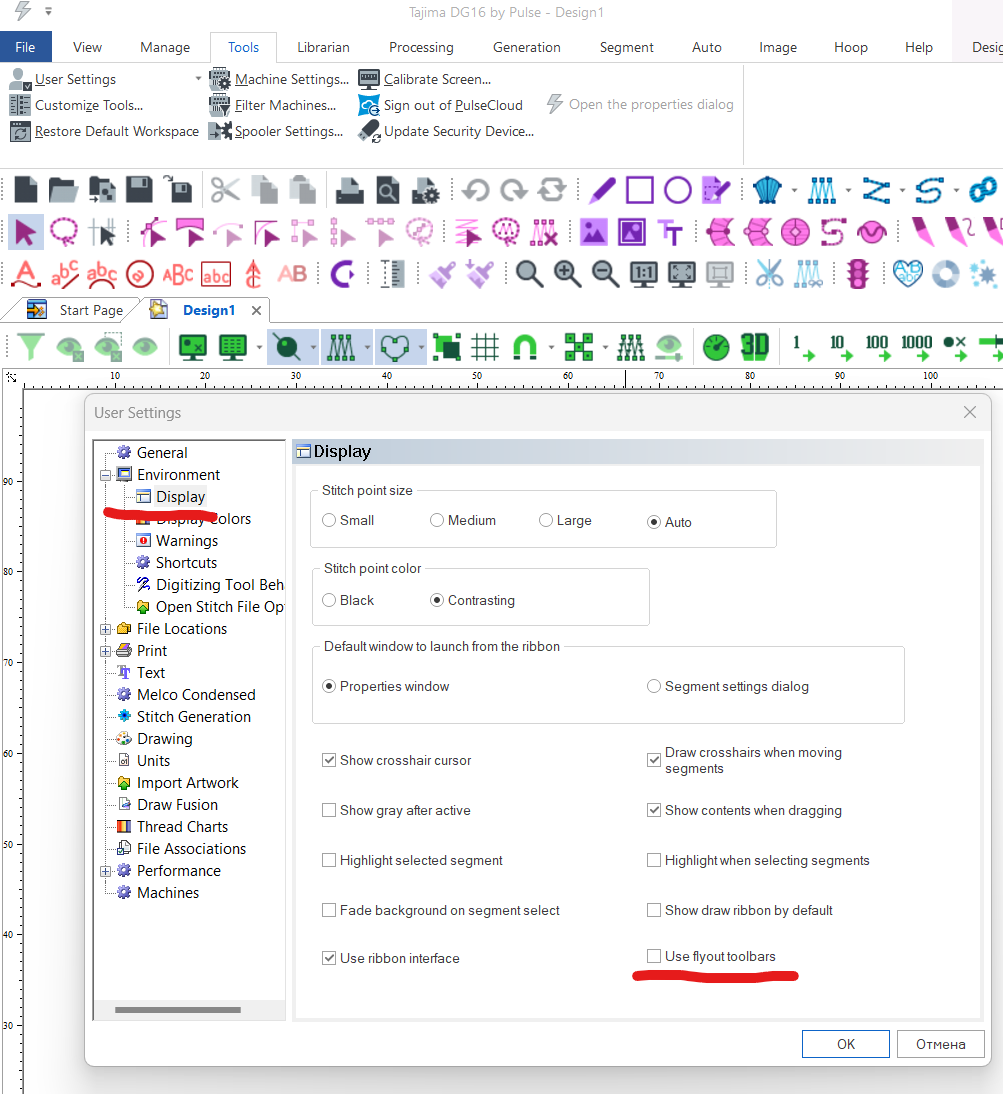
or
MrLogoSD wrote:
In DGML 12, on the bottom there used to be 5-6 letters, say with Satin stich, that you would press the corresponding letter B for Bezier(?) to be able to use the tools better. With 16 I don't see them at all. Is there a way to bring them back?
Also, for other tools like the Fonts, or Machine queue tools. Is there a way to expand them permanently without having to hard press them to see the options or press the small arrow?


Edit: Ok, so I found the tool guide on the right side, but there used to be a way to just see the letters on the bottom without that whole descriptions, is that not an option anymore?
edited by MrLogoSD on 5/8/2026
edited by MrLogoSD on 5/8/2026 |
7/18/2026
Topic:
When duplicating, the program crashes!
izšuvums.lv
|
See the attached PXF. When duplicating (Ctrl+D) this design, the program simply crashes. I also tried it in version 16, same thing. What is wrong with this design that causes the program to crash? |
7/20/2026
Topic:
When duplicating, the program crashes!
izšuvums.lv
|
keith@wsemerson.com wrote:
Segment #19 small triangle has an extra bead on left node...
Wow... to notice that. I am truly amazed. Thank you. Now everything is fine! |
7/21/2026
Topic:
When duplicating, the program crashes!
izšuvums.lv
|
keith@wsemerson.com wrote:
Move the bead in left corner of that segment. You will see another bead underneath it. Just an errant mouseclick when adding satin beads. I do it myself a lot, but it doesn't usually crash the software.
Yes, that is the thing, this usually does not cause a program crash. This is the first time this has happened to me, which is why I was puzzled. What is more, as you can see, the extra bead did not even distort the direction of the stitches, which also made it hard to notice right away and prevented me from seeing the cause of the problem. |
7/23/2026
Topic:
Why is this adding extra stray stitches?
izšuvums.lv
|
You have 24 angle lines placed on a 5mm object, just remove the extra ones. |
7/28/2026
Topic:
Design Tools mismatching icons with their function
izšuvums.lv
|
This issue occurs if you access the forum from inside the program. Restarting the program resolves it. To avoid losing your current work, you must save beforehand. Saving remains available as normal when this issue occurs. |
17 days ago
Topic:
Manual Stitch
izšuvums.lv
|
I have two suggestions to improve this tool:
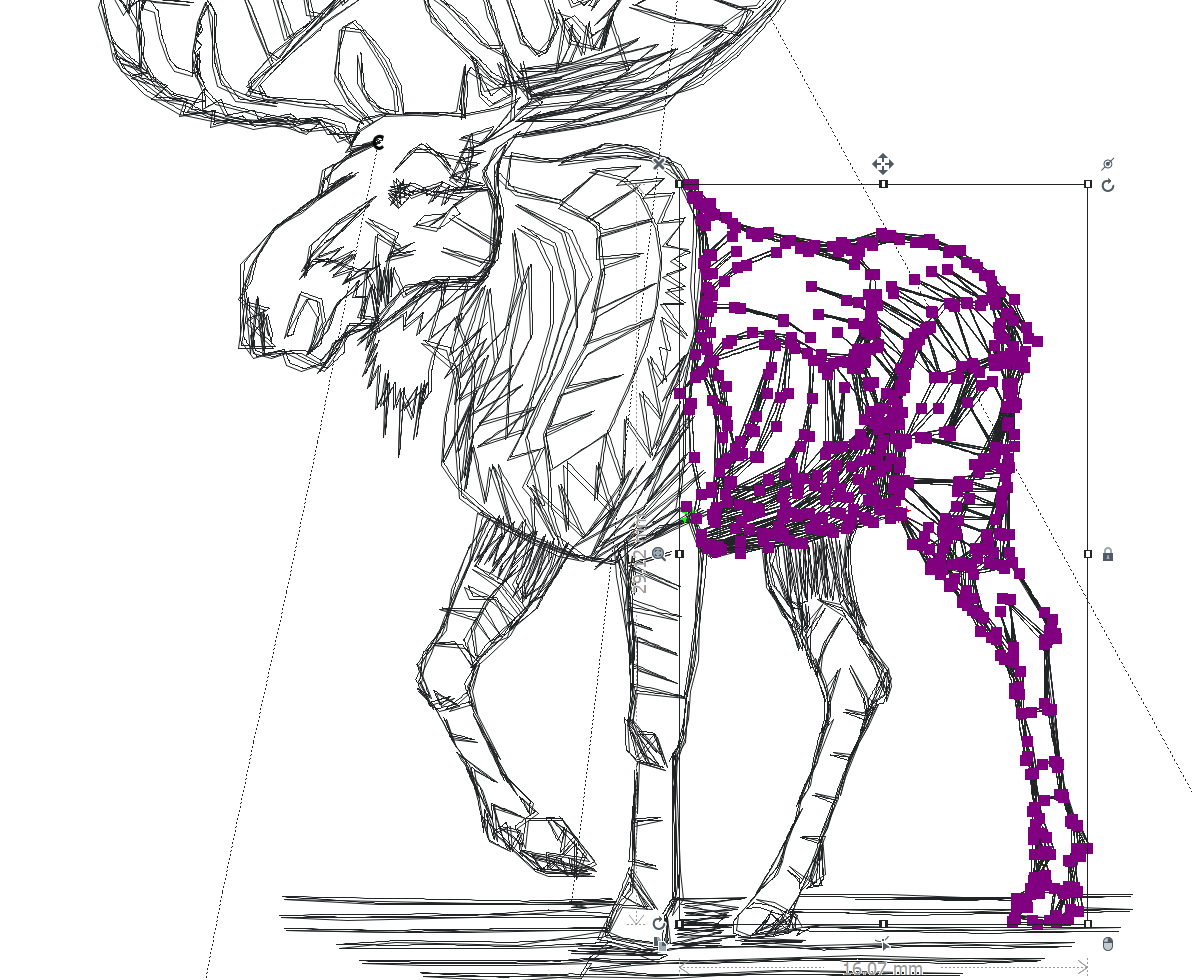
1. An element created with the manual stitch tool does not show where its start and end points are. This can only be determined by checking adjacent elements positioned before or after it. It would be great to have the start and end displayed directly on the element itself, just like elsewhere: a green circle for the start and a red triangle for the end.
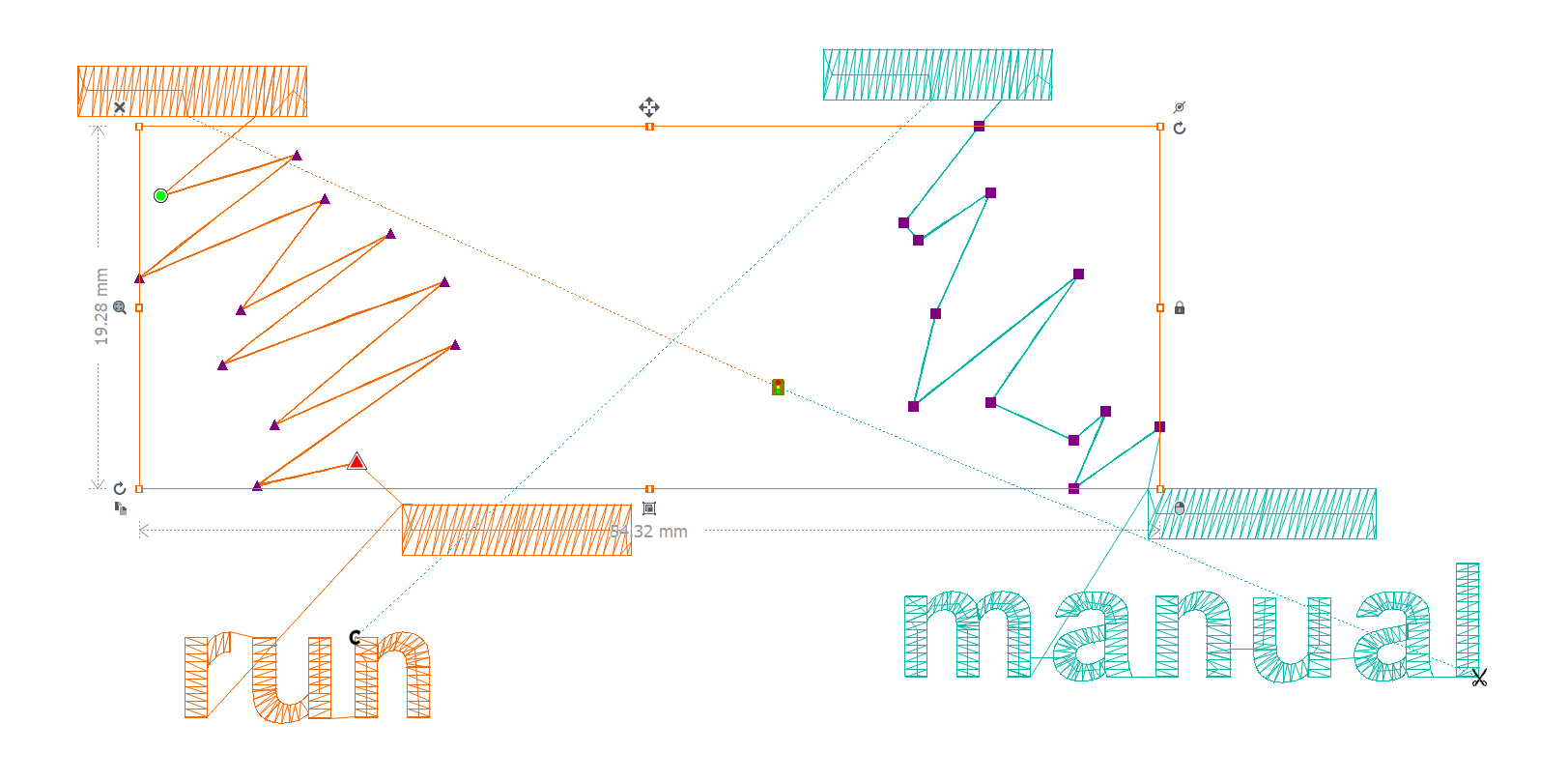
If a design is made entirely of manual stitches, it is very difficult to see where an element starts and ends in order to edit it if necessary.
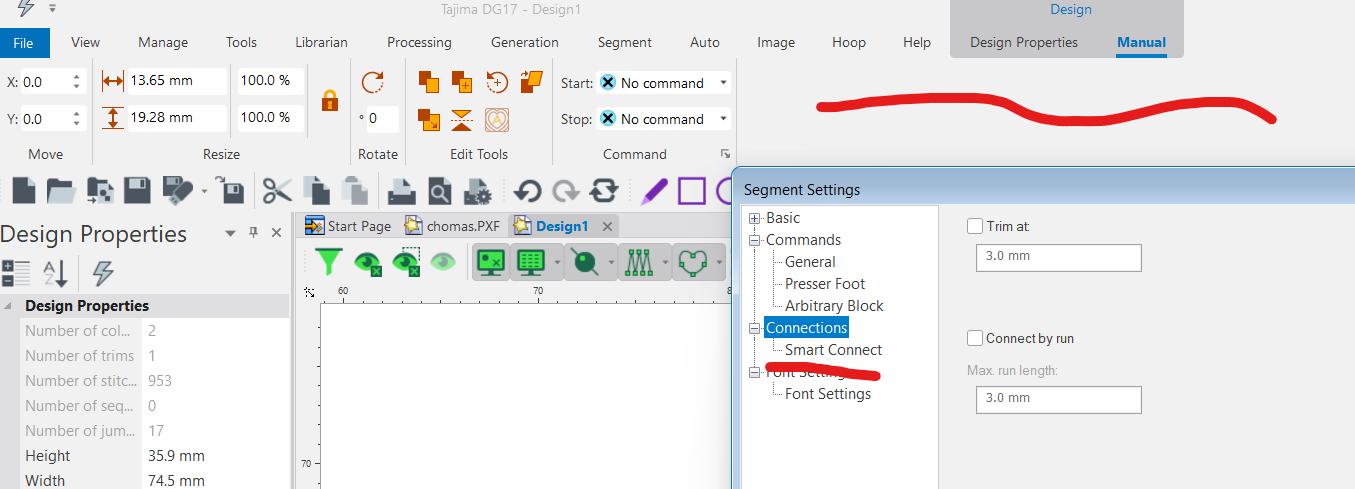
2. Add the option to insert start-lock and end-lock stitches at the start and end in the manual stitch tool. Currently, there is no way to do this.
edited by izšuvums.lv on 9/29/2026 |
16 days ago
Topic:
Run stitch
izšuvums.lv
|
Oh, right, I completely forgot about that. Thank you so much!
isilay wrote:
Hi. It sounds like you are mentioning an existing feature: "Freehand Mode" works like just you asked.
If your software level is Illustrator Extreme or higher, you can use it.
Select Run tool first, click "F" in the keyboard, then click and hold with your mouse's button and move the mouse.
If you use right click of your mouse button once, you will not need to hold any button while moving your mouse.
 |